Server Core 2022 上安装 WSL.note
一、在 Windows Server Core 2022 上安装 WSL:
1、创建WSL:
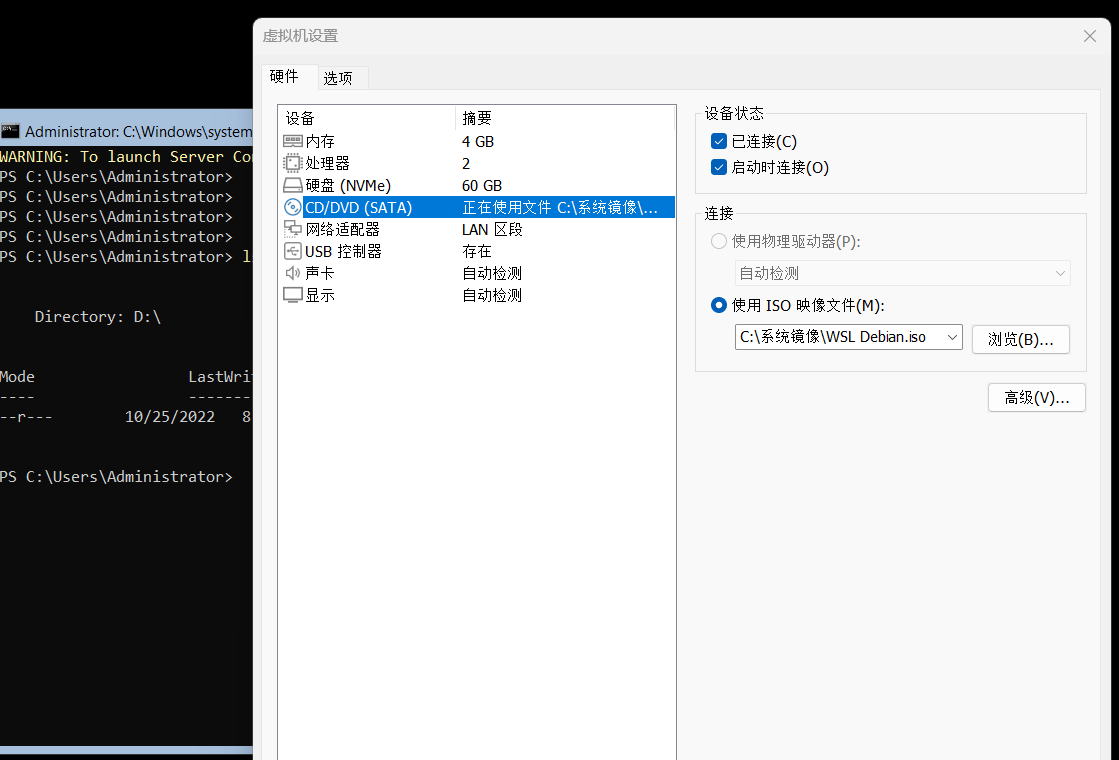
(1)在 Server Core 上挂载 WSL镜像:
(2)安装 WSL子系统服务:
使用图形化机器连接它进行安装:
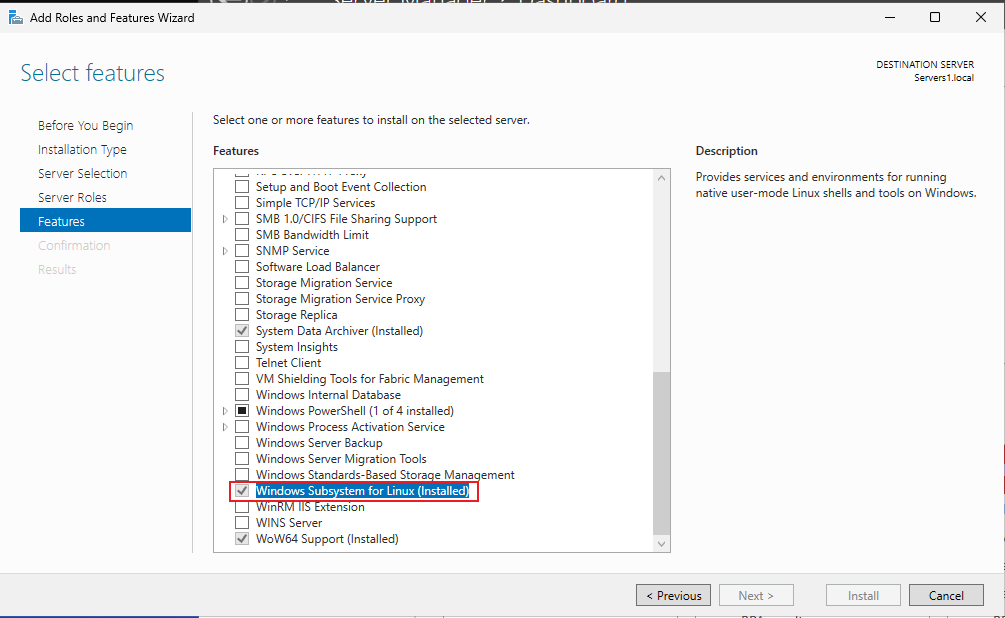
安装完成后重启 Server Core
或者使用命令安装也行
dism.exe /online /enable-feature /featurename:Microsoft-Windows-Subsystem-Linux /all /norestart安装完成后重启 Server Core
(3)将文件复制出来并解压,然后安装 WSL:
cp D:\WSL-Debian11.AppxBundle C:\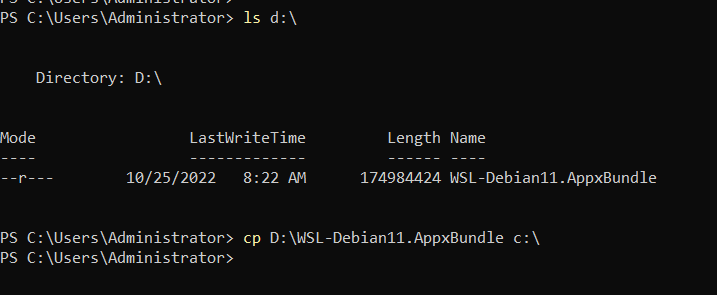
# 解压文件:
mkdir c:\WSL
tar -xf .\WSL-Debian11.AppxBundle -C C:\WSL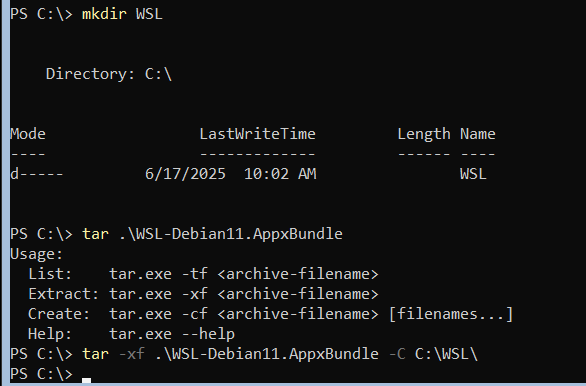
继续解压:
cd WSL
mkdir WSL
tar -xf .\DistroLauncher-Appx_1.12.2.0_x64.appx -C WSL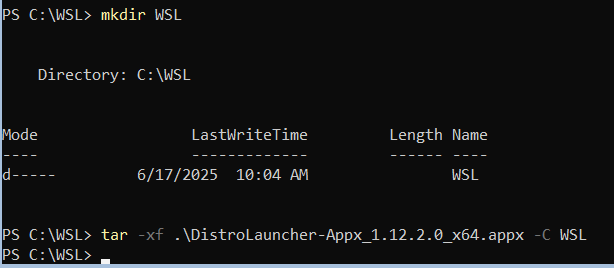
# 安装 WSL:
cd WSL
.\debian.exe
·如果遇到报错:

3.1、启用 虚拟机平台 功能:
dism.exe /online /enable-feature /featurename:VirtualMachinePlatform /all /norestart成功后重启 Server Core
3.2、然后安装这个WSL 2内核更新包:
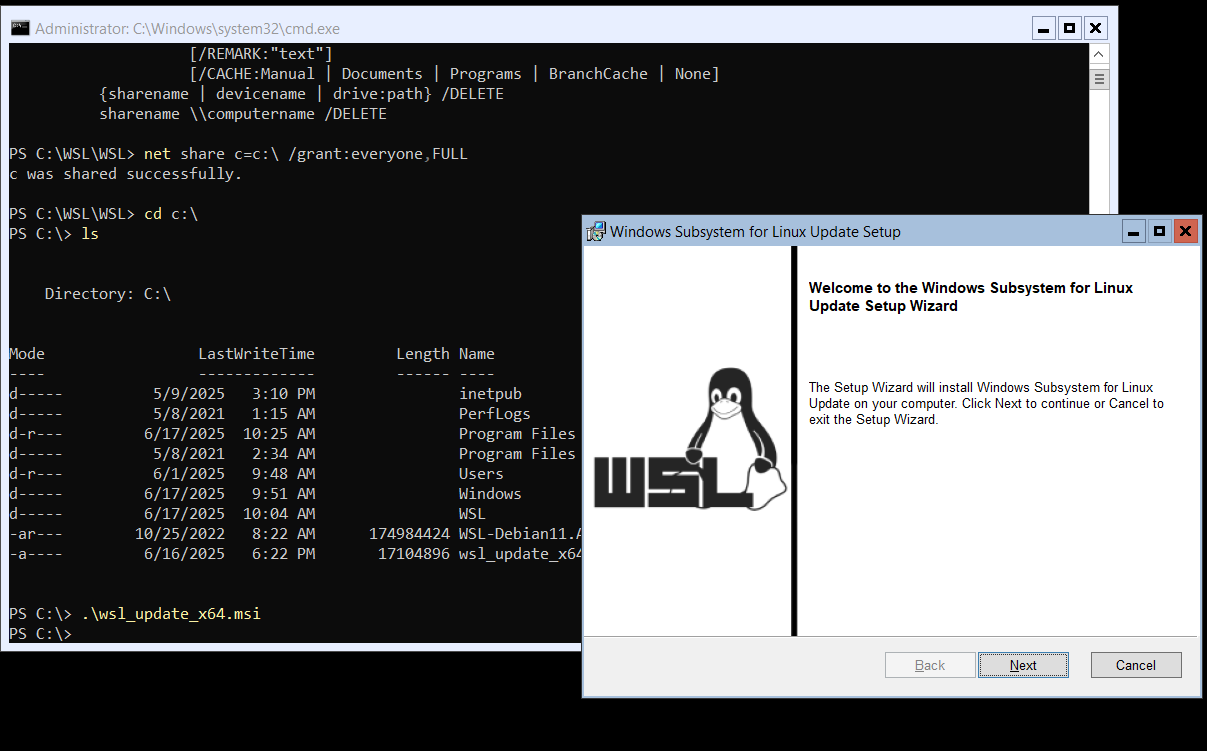
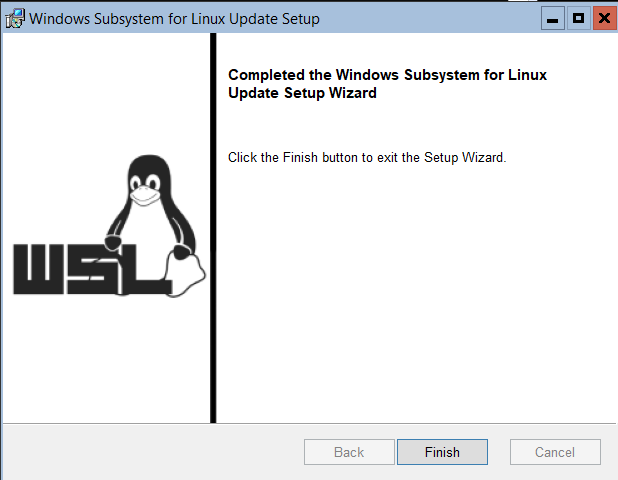
3.3、将 WSL 2设置为默认版本:
wsl --set-default-version 23.4、开启虚拟化:
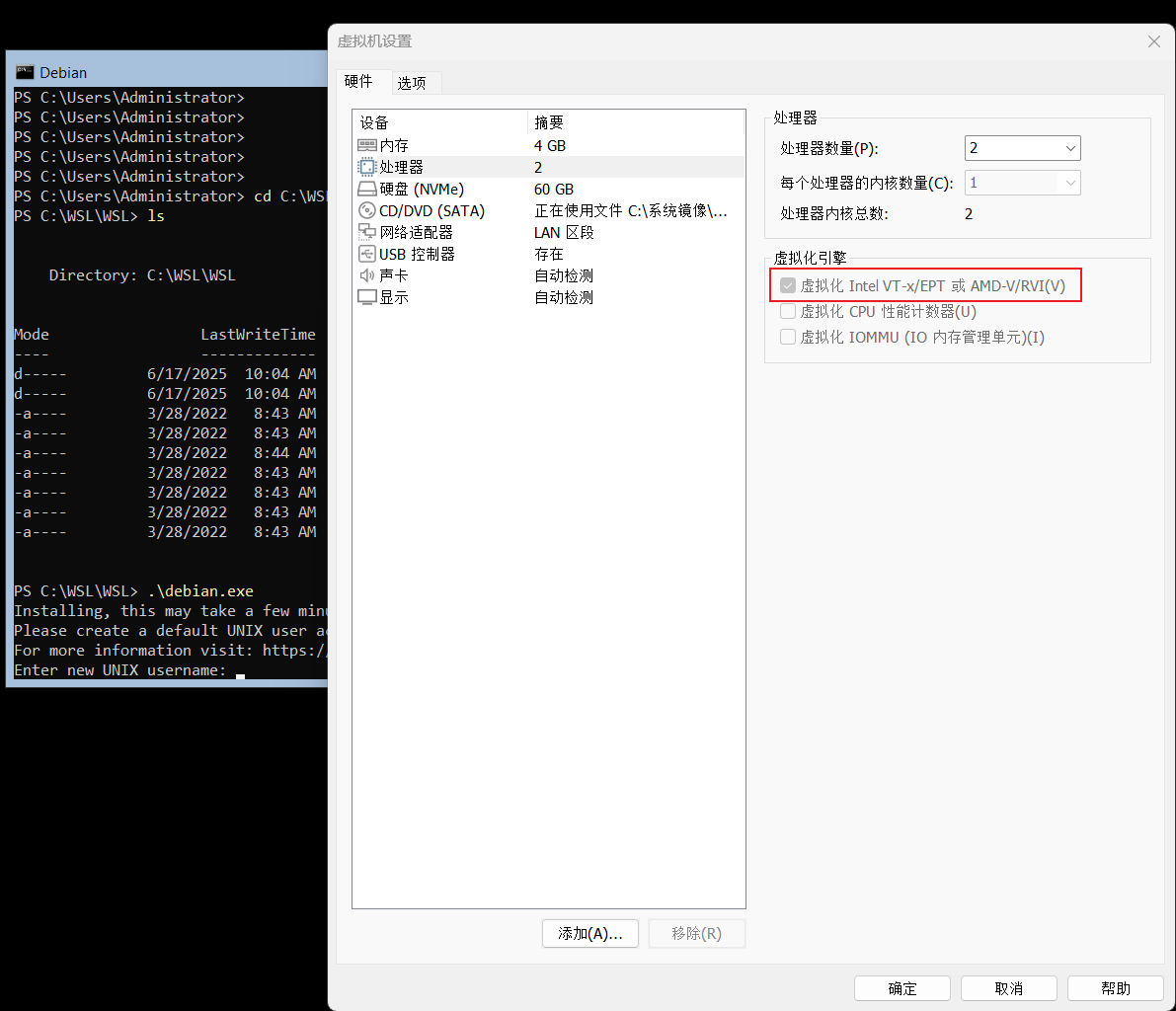
·注意!不能够安装 Hyper-V,Hyper-V会和这个冲突!
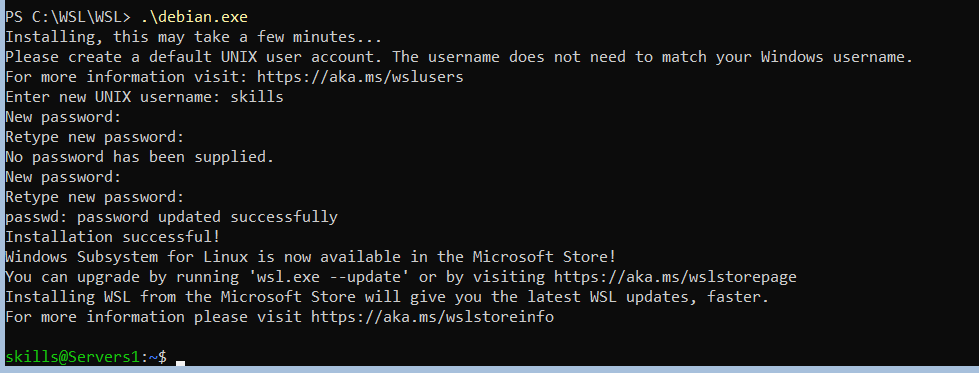
·然后再次运行:

运行成功: